
Tutorials
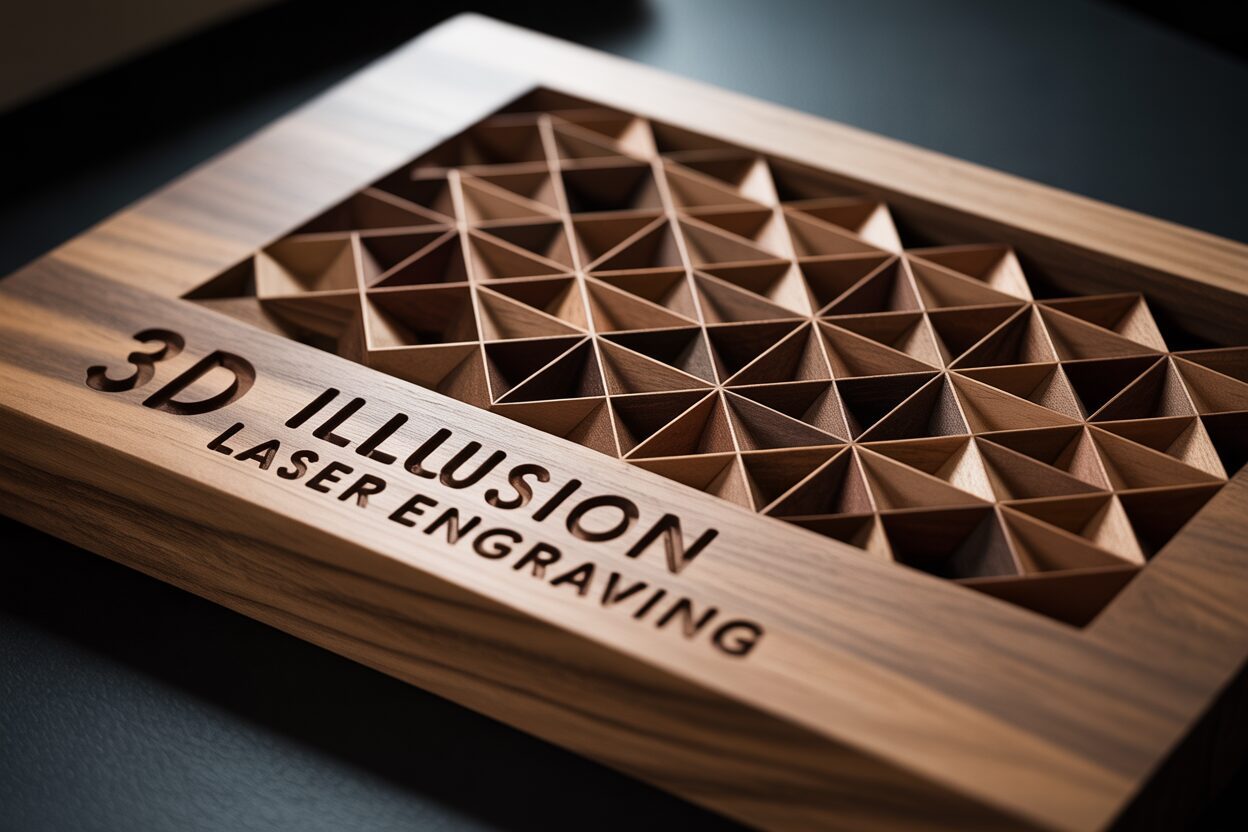
Creating 3D Illusion Laser Engravings on Wood
Jan
Estimated reading time: 9 minutes
Key Takeaways
- Grayscale is Key: 3D illusion engraving relies on high-contrast grayscale depth maps, where white pixels receive no laser power (highlights) and black pixels receive maximum power (shadows).
- File Quality Matters: Start with high-resolution (300+ DPI) raster files like PNG or BMP for the engraving and use corresponding vector files (SVG, DXF) for precise cutting.
- Calibration is Crucial: Always run a power/speed test grid on your specific wood to find the settings that produce the widest range of smooth shades, as this is essential for a convincing illusion.
- Use the Right Mode: You must use Grayscale mode in your laser software. Dithering modes will not create the variable depth needed for a 3D effect.
- Finishing Enhances Depth: Proper cleaning and applying a non-glossy finish, like Danish oil or a matte spray lacquer, dramatically increases contrast and makes the 3D illusion “pop.”
Dive into the captivating world of 3D illusion laser engraving. This guide will walk you through the entire process, from selecting the perfect 3D illusion laser files to mastering the specific wood engraving settings needed to create stunning, three-dimensional effects on wood. Get ready to elevate your laser engraving projects to a whole new level of artistry and precision.
The Art of 3D Illusion Laser Engraving
At its core, 3D illusion laser engraving is a masterful deception. Unlike true 3D carving, which physically removes material to create a contoured object, this technique creates the perception of depth on a flat wooden surface. It tricks the human eye by meticulously controlling light and shadow through variable burn depths. Standard laser engraving typically operates in two modes: cutting lines (vector) or filling shapes with a uniform shade or pattern (raster). The 3D illusion laser engraving process, however, is a far more sophisticated form of raster engraving. Instead of using a single power setting to fill an area, the laser’s power is continuously modulated pixel by pixel, creating a detailed topographical map of shades and textures that our brain interprets as a three-dimensional form.
The Power of Light and Shadow
The magic behind this illusion lies in the precise control of the laser beam. The fundamental principle is simple: the amount of energy the laser delivers to a specific point on the wood determines the color and depth of the mark. This energy is a function of two primary settings: power and speed. A high-power, low-speed pass delivers more energy, resulting in a deeper, darker burn that vaporizes more wood. Conversely, a low-power, high-speed pass delivers less energy, creating a lighter, shallower mark that may only slightly toast the surface. By mastering the interplay between these variables, you can produce a vast spectrum of shades, from the untouched blonde of the raw wood to a rich, dark char. It is this grayscale palette that serves as the artist’s tool. These advanced laser engraving techniques allow the laser to “paint” with heat, creating highlights where the wood is barely touched and deep shadows where it is burned most intensely.
From Digital Image to Physical Depth: Grayscale Mapping
The bridge between a 2D digital image and a physical 3D illusion is the grayscale depth map. This is the critical piece of data that instructs the laser how to behave. A depth map is a grayscale image where the brightness of each pixel corresponds to its intended height or depth. In the context of 3D illusion laser engraving, the mapping works as follows:
- Pure White (Value 255): Represents the highest point of the illusion. The laser software interprets this as zero power, leaving the wood surface untouched. These become the brightest highlights.
- Pure Black (Value 0): Represents the lowest point. The software commands the laser to apply maximum power for that job, creating the deepest and darkest recess. These form the shadows.
- Shades of Gray: Every gray value between white and black is mapped to a corresponding power level. A light gray will result in a very shallow, light-colored engraving, while a dark gray will produce a deeper, darker burn.
This direct translation of pixel brightness to laser power is what allows for the creation of smooth gradients and subtle contours. Therefore, the quality of the final engraving is inextricably linked to the quality of the source depth map. A high-resolution image with a full, rich tonal range—from brilliant whites to deep blacks—is non-negotiable. A “flat” image with poor contrast or muddy mid-tones will lack the necessary data to produce a convincing illusion, resulting in a piece that looks blurry or lacks dimensional punch. Preparing the source image is not merely about converting it to grayscale; it is an art of enhancing contrast and detail to effectively communicate depth to the machine.
Choosing and Preparing Your Design Files
The journey to a stunning 3D engraving begins with a high-quality digital design. The quality of your source file is the single most important factor determining the success of the final piece. Fortunately, a thriving community of digital artists and hobbyists means there is no shortage of places to find excellent 3D illusion laser files. Paid marketplaces like Etsy, Design Bundles, and specialized laser file websites are fantastic resources. They typically offer professionally designed, pre-tested files, which is a great starting point for beginners as it removes much of the guesswork. For those on a budget or looking for inspiration, free resources such as Thingiverse, laser-specific forums, and Facebook groups can be goldmines, though the quality can vary, so it’s wise to inspect files carefully before starting a project. When searching, look for files specifically labeled as “grayscale depth maps” or “3D illusion” files, which are often provided in high-resolution PNG or BMP formats.
Understanding File Formats for Engraving and Cutting
While the 3D illusion itself is created from a raster image (a pixel-based file like a JPG, PNG, or BMP), your complete project will often involve both raster and vector elements. The raster image provides the grayscale depth information for the engraving, while vector files define the precise outlines for cutting. This is where understanding vector files for laser engraving—such as SVG, AI, and DXF—becomes crucial. The primary advantage of a vector file is its scalability. You can resize a vector shape infinitely without any loss of quality or sharpness, ensuring your cut lines are always perfectly crisp. Many pre-made 3D illusion laser files come as a package: a high-resolution raster image for the engraving and a corresponding vector file for the cutout shape. This combination gives you the best of both worlds: detailed, photographic shading and perfectly clean edges.
Preparing Your Image for Depth
Whether you’ve downloaded a file or are creating your own from a photograph, proper preparation in software like Adobe Illustrator, GIMP, or directly within your laser software like LightBurn is non-negotiable. This process transforms a flat image into a set of instructions for the laser to create depth.
- Convert to Grayscale: The first step is to convert your image to an 8-bit grayscale format. This strips away all color information, leaving only the brightness values that the laser will use to map power levels.
- Adjust Contrast and Brightness: This is the most critical step. Your goal is to maximize the dynamic range of the image. You want your brightest areas to be as close to pure white as possible and your darkest areas to be rich black. Use the “Levels” or “Curves” tool in your image editor. By increasing the contrast, you are exaggerating the difference between the high and low points, which will translate into a more dramatic and convincing 3D effect on the wood. A flat, gray-looking image will result in a flat, uninspired engraving.
- Sizing and Resolution: Before exporting, ensure your image is sized to the exact dimensions of your final workpiece. The resolution, measured in DPI (Dots Per Inch), should be high, typically 300 DPI or more, to ensure fine details are captured. This is conceptually similar to preparing textures for laser cutting 3d models, where a high-resolution height map is needed to create a detailed surface.
- Combine and Finalize: In your laser software, import your prepared grayscale raster image. Then, import the corresponding vector cutline and align it perfectly around the raster image. Assign the raster image to an “Engrave” or “Fill” layer and the vector outline to a “Cut” layer. Now your file is fully prepared, telling the laser not only how to sculpt the 3D illusion but also how to precisely cut out the finished piece.
Mastering Wood Engraving Settings for Depth
Once you have a perfectly prepared grayscale depth map, the next step is to translate that digital information into physical depth using your laser. This is where mastering your machine’s wood engraving settings becomes paramount. The process is a delicate dance between three key variables: power, speed, and Lines Per Inch (LPI). Unlike standard engraving where you might set a single power and speed, 3D illusion work relies on a variable power output controlled by your grayscale image. You will set a minimum power (typically 0% or slightly above to overcome the laser tube’s firing threshold) and a maximum power. The laser software will then use the full range between these two points, applying minimum power to the white pixels and maximum power to the black pixels, creating the varied depths that form the illusion.
Calibrating Your Laser with a Test Grid
There is no universal “magic number” for settings; every piece of wood is different, and every laser has its own quirks. Therefore, running a power/speed test grid on a scrap piece of your project wood is the most critical step for achieving professional results. This test involves creating a grid of squares, where each square is engraved with a different combination of power and speed. Your goal is not to find the darkest black, but to find the settings that produce the widest possible range of distinct, smooth shades from a light tan to a deep brown. Look for the row/column that gives you a beautiful gradient without excessive charring or pitting. This calibrated range becomes your minimum and maximum power setting for the project, ensuring your laser engraving techniques are perfectly tuned to the material. This simple test removes all guesswork and is the foundation for predictable, repeatable results.
Grayscale Mode vs. Dithering
In your laser software’s layer settings, you will encounter different image modes, most commonly “Grayscale” and various “Dithering” options (e.g., Jarvis, Stucki). For true 3D illusion work, you must use Grayscale mode. Dithering simulates shades of gray by varying the spacing of black dots, much like a newspaper photograph. This is great for 2D photo engraving but is useless for creating depth, as the laser is only ever firing at one power level. Grayscale mode, however, directly modulates the laser’s power based on the 8-bit value (0-255) of each pixel in your image. This direct power modulation is the core mechanism that carves the different depths into the wood, making it an essential setting for this technique.
Starting Settings for Common Woods
While a test grid is always necessary, here are some widely accepted starting points for a 60-80W CO2 laser. Use these to establish a baseline for your own tests:
- Pine (Softwood): Pine is soft and burns easily. Use a lower power range to avoid deep charring. Starting Point: Speed: 300 mm/s, Max Power: 35%, Min Power: 5%, LPI: 300.
- Cherry (Hardwood): An excellent wood for engraving, it produces rich contrast with minimal charring. It can handle a wider power range. Starting Point: Speed: 250 mm/s, Max Power: 55%, Min Power: 8%, LPI: 400.
- Maple (Hardwood): Being very dense and light, maple requires more power to achieve dark marks but holds extremely fine detail. Starting Point: Speed: 200 mm/s, Max Power: 65%, Min Power: 10%, LPI: 400-600.
Remember, these are just guides. The exact wood engraving settings will depend on your specific machine, the exact piece of wood, and the level of depth you wish to achieve. Experimentation and careful calibration are the true keys to mastery.
Finishing Touches to Enhance the 3D Effect
The laser has finished its work, but the process of creating a truly captivating piece is not yet complete. The raw engraving, while impressive, is often covered in a fine layer of soot and resin residue that can dull the details and obscure the delicate gradients you worked so hard to achieve. The post-engraving finishing touches are what elevate a good project to a great one, transforming the subtle depths into a dramatic, eye-popping illusion. The first and most crucial step is a thorough yet gentle cleaning. Immediately after removing the piece from the laser bed, use a soft-bristled brush (a clean paintbrush or a toothbrush works well) to gently whisk away the loose surface dust. For the more stubborn, sticky residue common on woods like pine, a small amount of high-percentage isopropyl alcohol on a lint-free cloth or cotton swab can work wonders. Lightly dampen the cloth and wipe gently in the direction of the wood grain. Be careful not to scrub, as this can damage the fine peaks and valleys of the engraving. The goal is to lift the soot, revealing the crisp contrast between the clean, light wood and the rich, dark burns.
Applying Finishes to Maximize Contrast
With the piece cleaned and dry, you can now apply a finish to protect the wood and, more importantly, to dramatically enhance the 3D effect. A finish works by saturating the wood fibers, which serves two purposes: it deepens and enriches the natural color of the un-engraved wood, and it makes the charred, engraved areas appear even darker and deeper. This significant boost in contrast is the key to making the illusion pop. The choice of finish depends on the desired look and level of protection:
- Penetrating Oils (Danish Oil, Tung Oil): These are often the best choice for enhancing the 3D effect. They soak into the wood rather than sitting on top, providing a natural, satin look that doesn’t produce excessive glare. They do a fantastic job of making the darks darker while bringing out the warmth of the wood grain. Application is simple: wipe on a liberal coat, let it soak in for 15-20 minutes, then wipe off all the excess.
- Spray Lacquer or Polyurethane: For a more durable, protective topcoat, a spray-on clear coat is an excellent option. Choose a satin or matte finish. A high-gloss finish can create reflections and glare that compete with the engraved illusion, effectively flattening the perceived depth. Apply several light, even coats, allowing each to dry thoroughly.
- Wax Finishes: For a subtle, hand-rubbed sheen, a paste wax can be applied after an oil finish has cured. It adds a small amount of protection and a smooth feel without creating a heavy film.
Regardless of the finish you choose, the result is a richer, more vibrant piece where the highlights seem to push forward and the shadows recede dramatically.
Finally, consider how the finished piece will be displayed. Strategic lighting is the final ingredient in selling the illusion. Lighting the piece from the side or from above at a slight angle is far more effective than flat, direct light. This directional light casts real, microscopic shadows inside the deeper parts of the engraving, which perfectly align with and reinforce the “fake” shadows created by the dark burns. This interplay between the engraved shading and real, physical shading is the ultimate trick that convinces the brain it is seeing a true three-dimensional object. Experimenting with different wood species, finishes, and lighting angles is the final step in mastering the art of 3D illusion laser engraving, allowing you to develop your unique style and produce truly breathtaking results.
Conclusions
You now have the knowledge to create breathtaking 3D illusion laser engraving projects. By understanding the core principles, using the right vector files for laser engraving, and fine-tuning your machine’s settings, you can produce intricate designs that seem to leap off the wood. Experiment with these laser engraving techniques and start bringing your most creative 3D visions to life.
Frequently Asked Questions
Q: What is the best file format for 3D illusion laser engraving?
Interested in more 3D Illusion? Check out our 3D Illusion laser file designs: Click here!
A: The core design should be a high-resolution grayscale raster image (like a PNG or BMP) for the depth map. A corresponding vector file (SVG, DXF) is often included for the precise cutline around the engraving.
Q: Why is a test grid so important for this technique?
A: A test grid helps you calibrate the perfect power and speed settings for your specific laser and piece of wood. It allows you to find the widest possible range of shades from light tan to dark brown, which is essential for a convincing 3D effect and removes all guesswork.
Q: Should I use Grayscale or Dithering mode for 3D illusions?
A: Always use Grayscale mode. This mode directly modulates the laser’s power based on a pixel’s brightness, creating the varying physical depths necessary for the illusion. Dithering only simulates shades with dots at a single power level and will not create a 3D effect.
Q: What is the best finish to use on a 3D laser engraved piece?
A: Penetrating oils like Danish oil or Tung oil are excellent because they dramatically enhance contrast without creating glare. If you need a more protective topcoat, choose a satin or matte spray lacquer or polyurethane to avoid reflections that can flatten the 3D illusion.
Block "subscribe-popup" not found
