
Tutorials
A Guide to Mastering 3D Illusion Laser Engraving
Dec
Estimated reading time: 8 minutes
Key Takeaways
- 3D illusion laser engraving creates the perception of depth by varying the laser’s power based on a grayscale image, where black is the deepest and white is untouched.
- High-resolution (300+ DPI) raster images (JPEG, PNG, etc.) are required, as vector files lack the necessary pixel-by-pixel depth information.
- Dithering algorithms like Jarvis or Stucki convert grayscale images into patterns of dots, producing cleaner and more detailed results on organic materials like wood.
- Success depends on choosing the right material (like basswood or cherry), carefully calibrating laser settings (power, speed, resolution), and running test engravings on scrap material.
Table of Contents
Dive into the fascinating world of 3D illusion laser engraving. This guide will walk you through the entire process, from understanding the basic principles to executing complex designs. We’ll explore how to choose the best 3d illusion laser files and apply advanced techniques like dithering to create breathtaking art that appears to pop off the surface.
The Art and Science Behind 3D Illusion Engraving
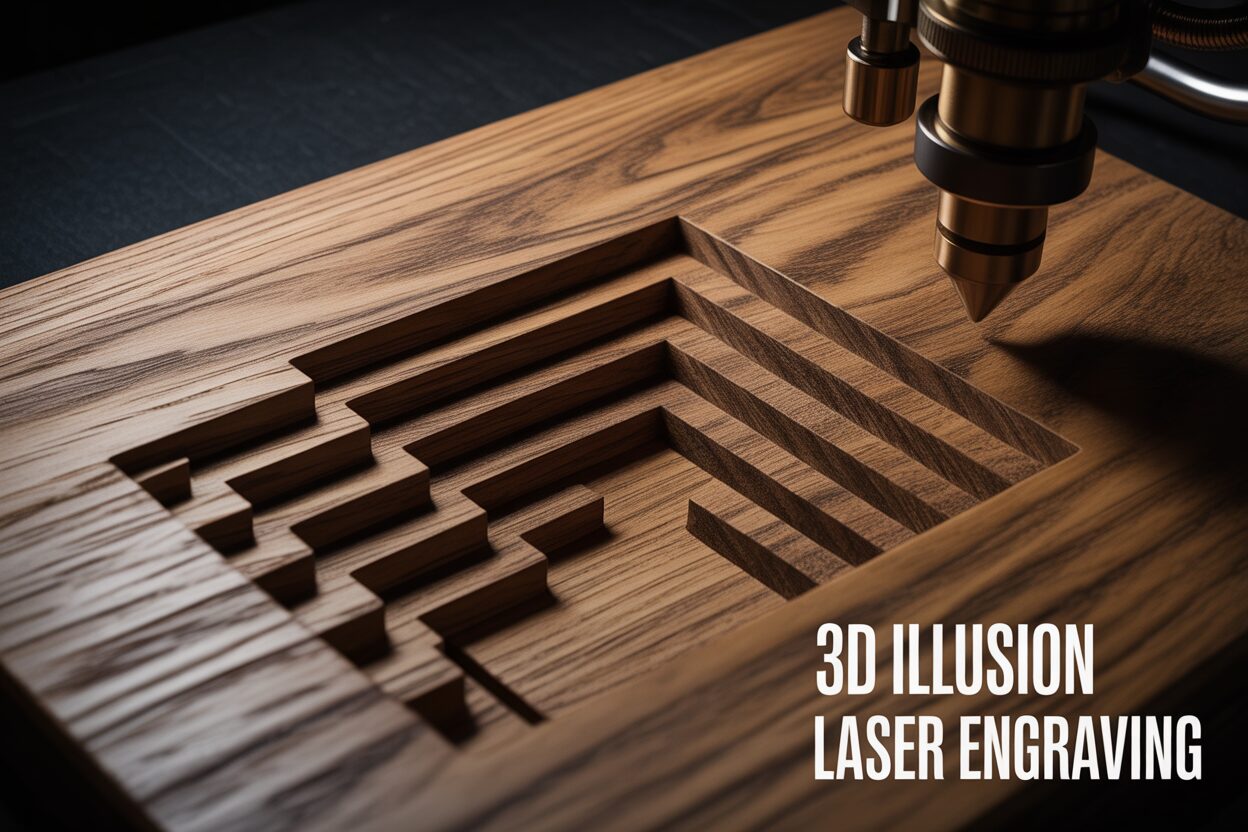
At its core, 3D illusion laser engraving is a sophisticated technique that manipulates a two-dimensional surface to create a convincing perception of three-dimensional depth. Unlike traditional engraving, which typically focuses on lines and outlines, this method uses the laser to create a topographical relief on the material. The magic lies in how our brain interprets the resulting variations in texture, color, and shadow. By precisely controlling the laser’s intensity, the engraver can vaporize material at varying depths. Deeper burns appear darker and seem to recede, while shallower or untouched areas remain lighter and appear closer. This clever manipulation of light and shadow tricks the eye into seeing a bas-relief sculpture, turning a flat piece of wood, acrylic, or slate into a dynamic piece of art with tangible depth and dimension. It’s an artistic illusion grounded in the precise application of laser physics.
The process is a beautiful dance between art and science, heavily reliant on the principles of light, shadow, and perspective. When the laser engraves deeper into a material like wood, it not only creates a darker char but also carves a physical cavity. When light hits this engraved surface, these tiny valleys cast microscopic shadows, enhancing the contrast and reinforcing the illusion of depth. The density of the engraving—how close the engraved dots or lines are to one another—also plays a vital role. A denser pattern in a specific area will appear darker and more recessed, mimicking the way shadows gather in the crevices of a real-world object. The final piece is not static; its 3D effect can often appear more pronounced when viewed from different angles as the ambient light interacts with the textured surface, making the artwork come alive.
Translating Grayscale to Depth
The key to unlocking this entire process is the critical role of grayscale. A 3D illusion engraving begins with a grayscale digital image, where every pixel has a value ranging from pure white to pure black, with 254 shades of gray in between. This grayscale image serves as a depth map for the laser. The engraving software interprets these shades as a set of instructions for the laser’s power output. Here’s how it works:
- Pure Black: The software instructs the laser to operate at its maximum power setting for the job. This results in the deepest burn and the darkest point on the material, representing the part of the image furthest from the viewer.
- Pure White: This tells the laser to fire at its minimum power setting or, in many cases, not to fire at all. This leaves the material’s surface untouched and light in color, representing the highest points or areas closest to the viewer.
- Shades of Gray: Every shade of gray between black and white corresponds to a proportional power level. A mid-tone gray will be engraved at roughly 50% of the maximum power, creating a medium depth.
This direct correlation between pixel brightness and engraving depth is what allows for the smooth gradients and subtle contours that make the 3D illusion so convincing. Therefore, images with a full, rich range of tones—from bright highlights to deep shadows—are ideal candidates for this technique. Flat, low-contrast images will simply not produce a compelling effect.
The stunning visual appeal and unique tactile quality of 3D engravings have made them incredibly popular for creating high-value decorative items and deeply personal gifts. The technique elevates a simple object into a cherished keepsake. This has opened up a world of creative wood engraving ideas, moving far beyond simple text and logos. Artists and makers are now creating lifelike animal portraits where you can almost feel the texture of the fur, intricate topographical maps with realistic mountain ranges, and architectural renderings that pop off the surface. For personalized gifts, family portraits can be transformed into timeless wooden reliefs, and custom 3D logos on corporate awards offer a premium, sophisticated feel that flat engraving simply cannot match.
Choosing Your Design and Preparing the Files
The foundation of a spectacular 3D engraving lies in the digital file itself, and not all files are created equal. In the world of laser cutting, vector files (like SVG, AI, or DXF) are king, as they consist of mathematical paths that tell the laser where to cut or score a line. For 3D illusion engraving, however, we must turn to raster images (such as JPEG, PNG, TIFF, or BMP). These are pixel-based images where, as we learned, each pixel’s grayscale value dictates the laser’s power. A vector file simply doesn’t contain this rich, pixel-by-pixel depth information necessary to create the illusion. Therefore, the first step in your journey is to source or create a high-quality raster image specifically designed for this purpose.
When searching for high-quality 3d illusion laser files, there are several key characteristics to look for. First and foremost is resolution. An image with at least 300 DPI (dots per inch) is crucial to avoid a pixelated or blocky final engraving. The higher the resolution, the finer the detail the laser can reproduce. Second, inspect the image’s gradients. Look for smooth, seamless transitions between light and dark areas. Any abrupt changes, known as banding, in the digital file will be glaringly obvious in the final engraved piece, breaking the illusion of depth. A good file will have a full dynamic range, utilizing the entire spectrum from bright white to deep black to maximize the perceived depth. You can find excellent, ready-to-use 3d laser engraving files on online marketplaces like Etsy, as well as on specialized websites dedicated to providing content for laser hobbyists and professionals.
File Preparation and the Power of Dithering
Once you have your chosen image, some minor preparation in photo-editing software like GIMP or Adobe Photoshop can significantly improve your results. The primary goal is to optimize the image’s contrast and brightness. Your aim is to ensure the image has a true white point (which will not be engraved) and a true black point (which will be engraved at maximum power). Using tools like “Levels” or “Curves” allows you to precisely adjust these points, stretching the image’s tonal range to make the 3D effect more dramatic. A slight increase in sharpness can also help to define edges, but be careful not to overdo it, as this can create unnatural-looking halos in the engraving. After making these adjustments, the file is ready to be imported into your laser control software, such as LightBurn.
This is where a critical process known as dithering comes into play. While your laser can vary its power to create different shades (a method often called “Grayscale” mode), this can sometimes lead to inconsistent or muddy results on organic materials like wood, which don’t always char uniformly. Dithering offers a more controlled alternative. A dithering algorithm converts the grayscale image into a pattern of black and white dots of varying density. The laser then fires at a consistent power for each black dot. Areas that were dark gray in the original image will have a dense pattern of dots, while light gray areas will have a sparse pattern. This process tricks the eye into seeing shades and produces an incredibly clean and detailed result. Common dithering algorithms you’ll find in software include:
- Jarvis: This algorithm is known for producing very smooth, soft tones. It’s an excellent choice for photographs and images with subtle, flowing gradients.
- Stucki: Often considered a sharper and more detailed option than Jarvis, Stucki is a fantastic all-around algorithm for a wide variety of 3D illusion engravings.
- Floyd-Steinberg: Another popular choice that offers a good balance of detail and smoothness.
Experimenting with these different dithering methods is a key part of the mastering process, as each one will interact differently with your specific image and material.
Step-by-Step Guide on How to Make 3D Laser Engraving
Now that we understand the theory and file preparation, let’s get our hands dirty and walk through the practical steps of how to make 3d laser engraving. The process begins with your canvas. Material choice is paramount for a successful illusion. You want a material with a light, uniform color and a tight, consistent grain structure. This provides the best possible contrast and ensures the laser burns evenly. Hardwoods like basswood, cherry, and alder are top-tier choices because their fine grain doesn’t interfere with the tiny details of the engraving. In contrast, woods with prominent, alternating grain patterns like pine or oak can disrupt the illusion, as the laser will burn differently on the hard and soft parts of the grain. Once you’ve selected your wood, ensure it is perfectly flat and securely fastened to the laser bed. Any warping will cause focus issues, ruining the detail. Finally, perform a precise focus of your laser beam. A sharply focused beam creates the smallest possible dot, which is essential for rendering the fine details produced by the dithering process.
Calibrating Your Settings for the Perfect Depth
With the material prepped, it’s time to configure the laser settings in your software. This is where art meets experimentation. The three primary settings you will control are Power, Speed, and Resolution (measured in DPI or LPI). Let’s use a sample project—engraving a detailed geometric pattern onto a 4-inch basswood coaster—to illustrate.
- Power: This is set as a range. Your Max Power corresponds to the black pixels in your image, creating the deepest burn. Your Min Power corresponds to the white pixels. For our basswood coaster, a good starting point is Max Power: 75% and Min Power: 0%. We avoid 100% to prevent excessive charring and potential flaming.
- Speed: This determines how fast the laser head moves. Slower speeds allow the beam to dwell longer, resulting in a deeper, darker burn. For 3D engraving, a moderate speed is often best to achieve depth without taking an exorbitant amount of time. Let’s start with Speed: 400 mm/s.
- Resolution (LPI/DPI): This is the density of the engraved lines or dots. A higher LPI creates more detail but also concentrates more heat in the wood. A good starting point for a detailed coaster is LPI: 340.
- Image Mode: As discussed, select a dithering algorithm like Stucki or Jarvis for the cleanest results on wood.
These settings are a starting point, not an absolute rule. The ideal combination depends entirely on your specific laser’s wattage, the type of wood, and its thickness.
This is why the next step is non-negotiable: the test run. Always use a scrap piece of the exact same material to run a small-scale test of your chosen design. After the test burn, examine it closely. Is it too light? You can either decrease the speed or increase the Max Power. Is it too dark and the fine details are lost in char? Increase the speed. The test allows you to fine-tune your settings without sacrificing your final workpiece. Once you are satisfied with the test result, you can confidently run the full engraving on your coaster. After the engraving is complete, the surface will be covered in a layer of soot and resin residue. Cleaning this off is the final, crucial step to making the 3D effect pop. Use a soft-bristled brush (like an old toothbrush) and some denatured or isopropyl alcohol to gently scrub the surface. The alcohol will dissolve the residue without raising the wood grain like water would. As you clean, you’ll see the soot lift away, revealing the crisp, clean contrast between the light, untouched wood and the dark, recessed burns, bringing your 3D illusion to life.
Conclusions
You now have the foundational knowledge to create your own stunning 3D illusion laser engraving projects. By selecting high-quality designs, understanding your materials, and mastering your machine’s settings, you can produce incredible pieces. Don’t be afraid to experiment with different wood engraving ideas and dithering algorithms to develop your unique style and impress your audience.
Frequently Asked Questions
Q: What is 3D illusion laser engraving?
Interested in more 3D Illusion? Check out our 3D Illusion laser file designs: Click here!
A: It is a sophisticated technique that uses a laser to engrave a two-dimensional surface at varying depths based on a grayscale image. This process manipulates texture, color, and shadow to create a convincing perception of three-dimensional depth, turning a flat material into a bas-relief style sculpture.
Q: What kind of file do I need for 3D illusion engraving?
A: You need a high-quality raster image, such as a JPEG, PNG, TIFF, or BMP, with a resolution of at least 300 DPI. Unlike laser cutting, vector files (SVG, AI) are not suitable because they lack the pixel-by-pixel grayscale information that serves as a depth map for the laser.
Q: What is dithering and why is it important for engraving on wood?
A: Dithering is a process where a grayscale image is converted into a pattern of black and white dots of varying density. This method provides more control and often produces cleaner, more detailed results on organic materials like wood, which may not char uniformly when using variable power (grayscale mode).
Q: What are the best materials for 3D laser engraving?
A: The best materials are those with a light, uniform color and a tight, consistent grain structure. Hardwoods like basswood, cherry, and alder are excellent choices because they provide high contrast and allow for fine details to be engraved clearly without interference from the grain.
Block "subscribe-popup" not found
