
Tutorials
A Guide to Creating 3D Illusion Laser Engravings
Mar
Estimated reading time: 11 minutes
Key Takeaways
- 3D illusion engraving uses grayscale depth maps to control laser power, physically carving varying depths into a surface to create a true bas-relief effect.
- The right material is critical for success; fine-grained woods like basswood and cherry, or non-wood alternatives like slate, yield the best, most detailed results.
- Proper setup, including using masking tape for clean-up, ensuring precise focus, and utilizing powerful air assist, is essential for producing clean, sharp, and deep engravings.
- Testing settings on scrap material with a grayscale power scale test grid is the most important step to optimize results for specific materials and avoid wasting your final workpiece.
Table of Contents
- Understanding 3D Illusion Laser Engraving
- Essential Tools and Materials for 3D Engraving
- Step-by-Step Guide to Your First 3D Engraving
- Advanced Techniques and Tips for Perfect Results
- Inspiring 3D Illusion Laser Engraving Project Ideas
- Conclusions
- Frequently Asked Questions (FAQ)
Dive into the fascinating world of 3D illusion laser engraving, a unique method that transforms flat surfaces into stunning, three-dimensional masterpieces. This guide will walk you through the entire process, from understanding the core concepts to creating your own eye-catching projects. Discover the tools, techniques, and tips you need to master this incredible craft and elevate your laser engraving skills.
Interested in more 3D Illusion? Check out our 3D Illusion laser file designs: Click here!
Understanding 3D Illusion Laser Engraving
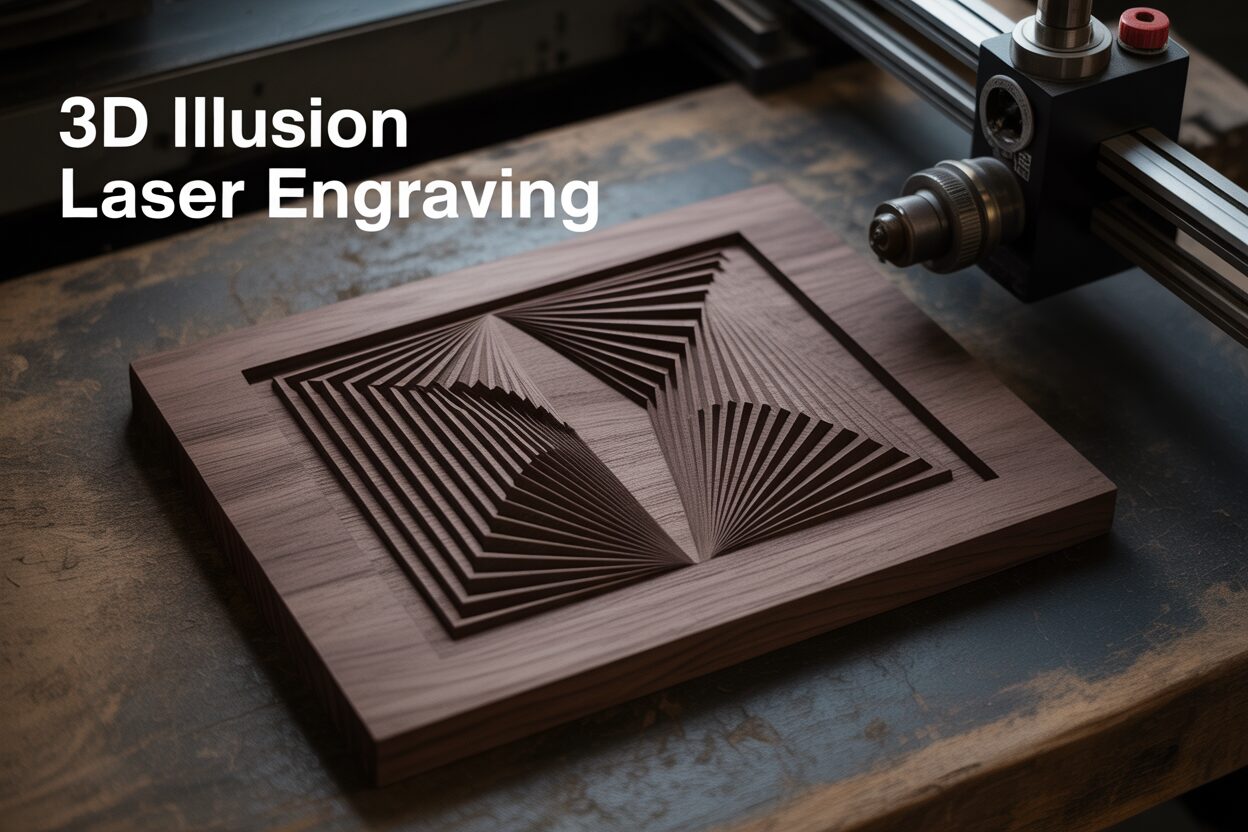
At its core, 3D illusion laser engraving is a fascinating technique that manipulates a two-dimensional surface, like a piece of wood or acrylic, to create an image that appears to have depth, texture, and form. Unlike traditional engraving that creates simple lines or flat, filled-in shapes, this method sculpts the material to produce a bas-relief effect. When you run your fingers over the finished piece, you can physically feel the contours, the peaks, and valleys that trick your eyes into seeing a three-dimensional object. It’s not an optical trick in the same way a hologram is; rather, it’s a physical alteration of the material’s surface, where depth is real, albeit shallow.
The Magic of Grayscale and Power Modulation
The secret to this illusion lies in how the laser interprets a special type of image file. The process hinges on a grayscale depth map. Think of this file not as a picture, but as a set of instructions for the laser. In a standard grayscale depth map:
- Pure white represents the highest point of the design. Here, the laser will use its lowest power setting or move at its fastest speed, barely marking the material. This leaves the surface untouched or very close to its original height.
- Pure black represents the lowest or deepest point. The laser software translates this into the highest power setting or slowest speed, burning away the most material to create the deepest part of the engrave.
- Shades of gray fill everything in between. The laser controller precisely adjusts its power output in proportion to the shade of gray for each pixel. A 50% gray pixel will receive roughly half the power of a black pixel, creating a depth halfway between the highest and lowest points.
This continuous variation in power, often called Power Modulation, allows the laser to carve smooth gradients and intricate details, effectively sculpting the material pixel by pixel as it moves across the surface. This is fundamentally different from dithering, another method of rendering images. Dithering uses patterns of dots to simulate shades of gray and is excellent for creating detailed 2D photo engravings. However, for a true physical 3D relief, grayscale is essential because it directly controls the engraving depth, while dithering just creates an optical illusion of shading on a flat plane.
The distinction between this technique and traditional engraving is critical. Traditional engraving is typically vector-based. The laser follows a path, like a pen drawing a line, to cut or score the material at a consistent depth. When filling a shape, it simply “colors it in” at a single, uniform power level. 3D laser engraving, on the other hand, is raster-based. It works line-by-line, like a printer, but instead of depositing ink, it removes material at a continuously varying depth based on the grayscale information of the image. This is why specialized 3d illusion laser files are so important. You can’t simply convert a standard photograph to grayscale and expect a perfect result. These files are meticulously designed as depth maps, where an artist has intentionally used specific shades of gray to define the height and contour of every feature, ensuring the final engraved product has a realistic and compelling sense of depth.
Essential Tools and Materials for 3D Engraving
Having the right equipment and materials is just as crucial as understanding the theory behind 3D illusion laser engraving. Your choice of laser, wood, and software will directly impact the quality, depth, and detail of your final creation. While a wide range of setups can work, certain combinations are proven to yield superior results, especially for those just starting out.
Choosing Your Laser Engraver
The heart of your setup is the laser engraver itself. The two primary types suitable for this work are CO2 and Diode lasers, each with its advantages.
- CO2 Lasers: These are generally considered the gold standard for high-quality, deep engraving. They operate at a wavelength that is highly effective at ablating wood and other organic materials. Machines like the Glowforge are exceptionally popular because their integrated software simplifies the 3d engraving process. You simply upload your grayscale file, choose a “3D Engrave” setting, and the machine interprets the depth map automatically. Their power allows for faster material removal, resulting in deeper and more dramatic relief in a single pass.
- Diode Lasers: In recent years, high-power diode lasers have become incredibly capable and are a more budget-friendly entry point. Brands like xTool offer powerful modules (20W and higher) that can achieve impressive depth. While they may require slower speeds or multiple passes to achieve the same depth as a CO2 laser, their precision is excellent for detailed work. The key is patience and testing; a well-tuned diode laser can produce results that rival more expensive machines.
Regardless of the type, the crucial feature is the laser’s ability to modulate its power in real-time based on the grayscale values of your image file—a standard feature on virtually all modern engravers.
Selecting the Perfect Material
Not all materials are created equal when it comes to holding the fine detail of a 3D engrave. The ideal material has a uniform density, a fine grain, and chars predictably without producing excessive resin or flare-ups. For wood, this means avoiding softwoods like pine, which have inconsistent hard and soft growth rings that lead to uneven engraving depth. Instead, focus on:
- Basswood: This is the ultimate beginner-friendly wood for 3d engraving. It’s soft, has a very fine and almost invisible grain, and a consistent, light color. The laser carves it away cleanly and easily, creating smooth gradients and sharp details with excellent contrast.
- Cherry Wood: A step up from basswood, cherry is a hardwood with a fine, straight grain and a beautiful reddish-brown hue. It holds incredibly fine detail and produces a rich, premium finish. The charring is clean and dark, providing great contrast against the natural wood color.
- Slate: An excellent non-wood alternative. When a laser hits slate, it ablates the dark surface, revealing a lighter gray layer underneath. This creates a natural, high-contrast 3D effect. The process is less about deep carving and more about controlled surface removal, resulting in a textured, stone-like relief perfect for coasters, plaques, and signs.
The Essential Software
Finally, you need software to translate your 3d illusion laser files into instructions for the machine. You won’t be designing the depth map here, but rather preparing it for engraving. Software like LightBurn is the industry standard for most diode and non-Glowforge CO2 lasers. In LightBurn, you import the grayscale image and set the “Image Mode” to “Grayscale.” This critical setting tells the software to use the image’s black, white, and gray values to control the laser’s power, which is the key to unlocking the 3D effect. For integrated systems like Glowforge, their proprietary web-based software handles this conversion seamlessly behind the scenes.
Step-by-Step Guide to Your First 3D Engraving
With your understanding of the principles and your tools at the ready, it’s time to create your first 3D illusion laser engraving. This step-by-step guide will walk you through the entire process, from loading the file to applying the final finishing touches. For this tutorial, we will assume you are using a piece of basswood, an excellent starting material.
Step 1: File Selection and Material Preparation
Your project’s success begins with the right file. Do not use a standard photograph converted to grayscale. Instead, acquire a purpose-built 3d illusion laser file, which is a true grayscale depth map. For your first attempt, choose a design with clear areas of high and low relief rather than one with extremely subtle, complex textures. Once you have your file, prepare your wood. Sand the surface smoothly with 220-grit sandpaper to remove any imperfections. After sanding, wipe it clean with a tack cloth or a lint-free rag. Now, apply a layer of medium-tack paper masking tape over the entire surface you plan to engrave. Press it down firmly, ensuring there are no air bubbles. This single step is a game-changer: the laser will engrave through the tape, and the tape will catch the vast majority of the smoke and resin residue, making cleanup incredibly simple.
Step 2: Setting Up the Engraving Job
Load your material into the laser engraver and secure it so it cannot move. Now, import your 3D illusion file into your laser software.
- Focusing: Use your machine’s auto-focus feature or manually focus the laser precisely on the surface of the masked material. Accurate focus is critical for capturing fine detail.
- Sizing and Placement: Position and scale the design onto your material within the software interface.
- Engraving Settings: This is the most crucial part. Unlike cutting, you will be using a raster “engrave” or “fill” operation. In software like LightBurn (common for xTool), you must select the image layer and set the “Image Mode” to Grayscale. This activates the power modulation we discussed earlier. In the Glowforge interface, you will select a setting like “3D Engrave” from the proofgrade menu or manually set the engrave mode to “Vary Power.”
A good starting point for settings on a piece of basswood with a 40W CO2 or 20W Diode laser would be a constant speed (e.g., 800mm/min), Max Power at 80-100%, and Min Power at 0-1%. The Lines Per Inch (LPI) or Line Interval setting determines the resolution; a value between 270 and 340 LPI is excellent for detailed results. Always run a small test piece first if you are unsure of your settings.
Step 3: Engraving and Post-Processing
With your settings confirmed, ensure your ventilation system is running and start the job. 3D illusion laser engraving is a slow process; the machine moves line-by-line, meticulously carving away material. A 4×4 inch piece can easily take over an hour, so be patient. Do not leave the machine unattended while it is operating. Once the engraving is complete, remove the piece from the machine. The surface will be covered in charred tape. Carefully peel off the masking tape to reveal a surprisingly clean engraving underneath. Use a soft-bristled brush, like an old toothbrush, to gently scrub out any fine dust or char from the deeper crevices. A quick wipe with a cloth lightly dampened with isopropyl alcohol can help remove any remaining smoky residue. To make the details truly pop and to protect the wood, apply a finish. A simple spray-on clear coat (satin or matte) or a wipe-on finish like mineral oil will darken the wood slightly, dramatically enhancing the contrast and bringing your 3D illusion to life.
Advanced Techniques and Tips for Perfect Results
Once you’ve mastered the basics of your first engraving, you can begin refining your process to achieve truly breathtaking results. Moving from a good result to a professional-quality one involves a deeper understanding of your machine’s settings and how they interact with different materials. These advanced laser engraving techniques are all about control and optimization.
The Power of the Test Grid
Never engrave a final piece without first running a test on a scrap of the exact same material. This is the single most important habit for achieving perfect results. Instead of just testing a small square, create a “grayscale power scale” test file. This is an image with distinct blocks of gray, ranging from 100% black to 90%, 80%, and so on, all the way to 10% gray and pure white. Engraving this test grid will show you precisely how your specific material reacts to different power levels. You might discover that for cherry wood, the difference between 90% and 100% power is minimal but produces more charring, so you can cap your Max Power at 90% for a cleaner result. Or you might find that on slate, any power level below 40% doesn’t leave a mark, allowing you to remap the grayscale in your software to use a more effective power range. This testing process takes the guesswork out of your settings and is the key to unlocking the full potential of any material.
Mastering Air Assist for Unparalleled Clarity
While optional for some basic engraving, a powerful air assist is non-negotiable for high-quality 3D illusion laser engraving. Air assist is a stream of compressed air directed at the point where the laser contacts the material. Its role here is twofold and critical:
- It clears debris: As the laser vaporizes the wood, it creates smoke and tiny particles. Without air assist, this debris can settle back into the freshly carved area, blocking the laser beam on its next pass. By forcefully blowing this debris away, air assist ensures the laser is always hitting clean, virgin material, allowing it to carve deeper and more efficiently.
- It reduces charring: The jet of air significantly reduces flare-ups and extinguishes embers as they form. This prevents the dark, sooty buildup that can obscure fine details and muddy the contrast of your engraving. The result is a cleaner, sharper appearance with beautifully defined contours that enhance the 3D effect.
For deep engraves, a high-flow air assist is essential. If your machine’s built-in pump seems weak, consider upgrading to a small, external air compressor for the best possible results.
Choosing Files and Troubleshooting Common Issues
Not all 3d illusion laser files are created equal. When selecting a design for maximum impact, look for files with a wide dynamic range—meaning they have both pure blacks and pure whites. Designs that utilize the full grayscale spectrum will produce the most dramatic depth. Files with very smooth gradients will look more realistic than those with abrupt changes in shade. If you encounter issues, here’s how to troubleshoot:
- Problem: Lack of Depth. Your engraving looks flat. The primary causes are insufficient power or excessive speed. Try slowing the engraving speed down first, as this gives the laser more time to ablate the material. If that’s not enough, incrementally increase your Max Power setting. Also, double-check your focus; an out-of-focus beam will be wider and less powerful, leading to shallow results.
- Problem: Excessive Charring or a “Melted” Look. Your details are soft and covered in soot. This is often a sign of too much power delivered too slowly, combined with inadequate air assist. Increase your air assist flow, increase your speed, or slightly decrease your Max Power. Remember that using quality masking tape, as mentioned in the previous chapter, is your best first defense against surface charring.
Inspiring 3D Illusion Laser Engraving Project Ideas
Now that you’ve grasped the techniques behind 3D illusion laser engraving, the truly exciting part begins: applying your skills to create stunning, tangible objects. This method opens up a world of creative possibilities far beyond flat, two-dimensional designs. To spark your imagination, here are several project ideas, ranging from simple gifts to elaborate art pieces, that are perfectly suited for the depth and texture of 3d laser engraving. Each of these projects can be brought to life using commercially available 3d illusion laser files.
Custom Coasters and Decorative Tiles
Coasters are an ideal starting project. They are small, require less material and time, and allow you to perfect your settings.
- The Concept: Engrave a set of coasters with mesmerizing geometric patterns, Celtic knots, or intricate mandalas. The 3D effect will make the designs appear to rise from the surface or recede into it, creating a tactile and visual experience for anyone who picks one up.
- Suggested Materials: Slate is a fantastic choice here. The laser engraves away the dark top layer to reveal a light gray beneath, creating a natural, high-contrast 3D effect that is both beautiful and durable. Thick cork or basswood squares also work wonderfully and can be sealed with a waterproof finish to protect them from moisture.
Personalized Charcuterie and Cutting Boards
Elevate a simple kitchen item into a personalized work of art. A 3D engraved charcuterie board makes a spectacular wedding, anniversary, or housewarming gift.
- The Concept: Engrave a family name, monogram, or a beautiful floral design into the corner or handle of the board. The key is to create an “illusionary inlay” effect. By engraving the design with significant depth, it appears as though a separate, carved piece has been expertly set into the wood, giving it a high-end, handcrafted look.
- Suggested Materials: Hardwoods like maple, cherry, or walnut are perfect. They are food-safe, durable, and their fine grain holds detail exceptionally well. The darker char created by the laser on these woods provides a rich contrast that makes the 3D relief truly stand out. Remember to finish the board with a food-safe mineral oil to protect the wood and enhance the engraving.
Stunning Wall Art and Plaques
This is where 3d laser engraving truly shines, allowing you to create gallery-quality art. Whether it’s a piece of abstract art or a detailed portrait, the added dimension creates an unmatched visual impact.
- The Concept: Find a detailed 3d illusion laser file of a landscape, an animal portrait, or an intricate abstract pattern. Engrave this onto a large piece of wood to be framed or hung as-is. The interplay of light and shadow across the carved surface will change throughout the day, making the artwork feel dynamic and alive. Desktop plaques with a company logo or a favorite quote rendered in 3D also make for impressive and professional-looking decor.
- Suggested Materials: Cherry wood is a premium choice for its beautiful color and ability to hold fine detail. Basswood is also excellent, offering a lighter canvas that can be stained or painted after engraving to add another layer of customization. For a more rustic look, consider engraving on a live-edge wood slab. The contrast between the natural, untamed edge and the precisely carved 3D center creates a powerful artistic statement.
Conclusions
You now have the knowledge to create your own incredible 3D illusion laser engravings. By understanding the principles, selecting the right materials, and fine-tuning your settings, you can produce breathtaking works of art. Don’t be afraid to experiment with different 3d illusion laser files and techniques to develop your unique style and impress with your stunning creations.
Frequently Asked Questions (FAQ)
Q: What is the difference between 3D illusion engraving and standard photo engraving?
A: 3D illusion engraving uses a grayscale depth map to physically carve varying depths into a material, creating a true relief effect. Standard photo engraving uses dithering (patterns of dots) to create an optical illusion of shading on a flat surface.
Q: Can I use any picture for 3D engraving?
A: No, you cannot simply convert a standard photograph to grayscale. You need a purpose-built 3D illusion laser file, which is a true grayscale depth map where shades of gray are intentionally used to define the height and contours of the design.
Q: What is the best material for a beginner in 3D laser engraving?
A: Basswood is highly recommended for beginners. It has a fine, consistent grain, a light color, and carves cleanly, making it easy to achieve smooth gradients and sharp details with excellent contrast.
Q: Why is my 3D engraving coming out flat?
A: A flat or shallow engraving is usually caused by insufficient power, excessive speed, or incorrect focus. Try slowing down the engraving speed, increasing the laser’s maximum power setting, and ensuring the laser is perfectly focused on the material’s surface.
Block "subscribe-popup" not found
