
-
×
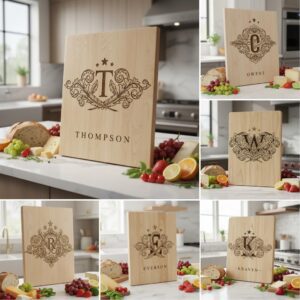 Vintage Crest Bundle, Charcuterie Board Designs, Elegant Monogram Family Name Art
1 × Original price was: $5.00.$3.50Current price is: $3.50.
Vintage Crest Bundle, Charcuterie Board Designs, Elegant Monogram Family Name Art
1 × Original price was: $5.00.$3.50Current price is: $3.50.(30% off)
-
×
 Funny Kitchen Humor Bundle, Charcuterie Board Engraving Designs, 20 Styles
1 × Original price was: $5.00.$3.50Current price is: $3.50.
Funny Kitchen Humor Bundle, Charcuterie Board Engraving Designs, 20 Styles
1 × Original price was: $5.00.$3.50Current price is: $3.50.(30% off)
 Funny Kitchen Humor Bundle, Charcuterie Board Engraving Designs, 20 Styles
 Tutorials
A Beginner’s Guide to 3D Illusion Laser Engraving
Estimated reading time: 6 minutes
Key Takeaways
- 3D illusion engraving uses precisely controlled grayscale shading to create the perception of depth on a 2D surface, rather than physically carving a 3D object.
- The ideal materials are light-colored with a uniform, subtle grain and low resin content, such as Basswood, Maple, or Cherry, to maximize contrast.
- Success depends on high-resolution (300+ DPI) grayscale raster images (depth maps) where shades directly correspond to the intended height and depth.
- Calibrating your laser’s power, speed, and resolution by running a test grid on your specific material is essential to achieve the best dynamic range and a convincing 3D effect.
Table of Contents
Dive into the fascinating world of 3D illusion laser engraving. This article will guide you through the essential techniques and settings needed to create breathtaking optical illusions on surfaces like wood. We’ll explore everything from selecting the right design files to calibrating your laser, turning flat materials into intricate, three-dimensional works of art that are sure to impress.
Interested in more 3D Illusion? Check out our 3D Illusion laser file designs: Click here!
Understanding the Magic of 3D Illusion Laser Engraving
At its core, 3D illusion laser engraving is a masterful deception. It is not about physically carving a three-dimensional object out of a material, but rather about manipulating a two-dimensional surface to trick the human eye into perceiving depth, texture, and contour. The magic lies in the clever application of light and shadow, a principle artists have used for centuries. Think of how an artist uses charcoal or a pencil to shade a simple circle; with carefully placed darks, lights, and mid-tones, that flat circle transforms into a sphere that looks like it could roll right off the page. 3D illusion laser engraving applies this exact same principle, but its shading tool is a highly focused beam of light. The laser doesn’t just cut or burn a uniform line; it meticulously varies the intensity of the burn across the surface, creating a detailed grayscale image where different shades correspond to different perceived depths.
The Science of Shading with Light
The entire effect hinges on how our brains interpret light. Darker, more heavily engraved areas absorb more light and reflect less. Our brain instinctively interprets these darker spots as shadows or areas that are farther away from us. Conversely, lighter, less-engraved areas—or even untouched parts of the material—reflect more light. These bright spots are perceived as highlights, representing surfaces that are closer to the viewer or angled towards a light source. By precisely controlling this spectrum of shades, from the deep char of a full-power burn to the lightest kiss of the laser, you can create a topographical map of light and dark that mimics the way a real 3D object interacts with its environment. This is the essence of optical illusion engraving: creating a gradient of shades that convinces the brain it is seeing a sculpted, three-dimensional form.
The technical execution of this illusion relies on translating a digital image into physical instructions for the laser. This is primarily done using grayscale images. In a standard 8-bit grayscale image, every pixel has a value from 0 (pure black) to 255 (pure white). Laser engraving software interprets these values and modulates the laser’s output accordingly. A pixel with a value of 0 (black) tells the laser to fire at its maximum set power, creating the darkest and deepest burn. A pixel with a value of 255 (white) tells the laser not to fire at all, leaving the material’s original surface untouched. All the shades of gray in between result in a proportionally scaled laser power, creating the subtle gradients essential for the 3D effect. The density of engraved lines, often measured in Lines Per Inch (LPI), also plays a critical role. Higher LPI settings pack the engraved lines closer together, resulting in darker, more solid-looking shadows and smoother transitions between tones.
This technique has become incredibly popular because it adds immense visual value and a “wow” factor to common materials. While any image can be engraved, some are far more effective at producing a stunning 3D effect. The best candidates are images with a wide dynamic range, meaning they have distinct highlights, deep shadows, and a rich variety of mid-tones.
- High-Contrast Portraits and Figures: Images with strong, directional lighting that casts clear shadows work exceptionally well.
- Grayscale 3D Renders: Digital models rendered specifically as grayscale depth maps are perfect, as the shades of gray already correspond directly to 3D depth information.
- Geometric Patterns and Textures: Intricate patterns with repeating elements of light and shadow can create mesmerizing, almost holographic effects that seem to pop off the surface.
By choosing the right image and mastering the control of light and shadow, laser engraving transcends simple marking and becomes a form of digital sculpture on a flat plane, turning a simple piece of wood, acrylic, or slate into a captivating work of art.
Preparing Your Project Materials and Design Files
The stunning illusion of depth you learned about in the previous chapter can only be fully realized with the right foundation: a suitable material and a properly prepared design file. These two elements are not merely preparatory steps; they are as critical to the final outcome as the laser settings themselves. Choosing a material that clashes with your design or using a low-quality file is like giving a master painter a dirty canvas and watery paints—the potential for a masterpiece is lost before the work even begins. For beginners, the most forgiving and rewarding material is wood, but not all wood is created equal when it comes to this technique.
When embarking on 3d laser engraving on wood, your goal is to find a canvas that offers maximum contrast and minimal visual interference. The ideal wood has three key characteristics: a light, uniform color; a tight, subtle grain; and low resin content. A light-colored surface ensures that the darkest, most deeply engraved areas stand out dramatically against the untouched parts of the wood, maximizing the perceived depth. A busy or dark grain pattern, like that found in oak or zebrawood, acts as visual noise that can break the illusion and compete with your engraved details. Finally, resinous woods like pine tend to burn unevenly and produce a sticky soot, which can obscure fine details and create a muddy appearance. For these reasons, the best woods for 3D illusion engraving are:
- Basswood: Often considered the perfect choice for beginners. It is incredibly light in color, has an almost invisible grain, and engraves with remarkable consistency, producing a smooth gradient from a light tan to a deep brown-black.
- Maple: A close second, Maple is a harder wood that offers a very clean, crisp engraving. Its light color and subtle grain provide an excellent canvas for detailed work.
- Cherry: While slightly darker with a reddish hue, Cherry engraves beautifully, producing a rich, high-contrast image. The final look is often more subtle and refined than on lighter woods.
While wood is a popular choice, this technique also shines on other materials like dark slate, which engraves a light gray, and black cast acrylic, which produces a frosted white mark, both offering fantastic contrast.
The Blueprint for Illusion: Sourcing and Preparing Your Design File
Just as crucial as the physical material is the digital one. The quality of your laser engraving design files will make or break the 3D effect. Unlike standard engraving which might use simple line art or vectors, 3D illusion engraving relies exclusively on high-quality raster (or bitmap) images, typically in formats like PNG, JPEG, or TIFF. The key is that the image must be a carefully constructed grayscale depth map. This means the shades of gray are not arbitrary; they directly correspond to the intended height of the object. Darker areas represent lower points (shadows, crevices), while lighter areas represent higher points (highlights, peaks). A good file will have a smooth, full-range gradient from pure black to pure white, without large flat areas of a single shade, which would result in a flat-looking engraving. High resolution is non-negotiable; aim for at least 300 DPI (Dots Per Inch) to ensure the laser can reproduce smooth transitions without visible pixelation.
Finding or creating these specialized files is a key skill. You can often find pre-made files by searching online for terms like “grayscale depth map,” “3D laser engraving file,” or “CNC heightmap” on marketplaces like Etsy or specialized 3D model websites. For those looking to create their own, it involves more than just converting a color photo to grayscale. It requires using image editing software like Photoshop or GIMP to manually enhance the highlights and shadows, effectively “sculpting” with light and dark to create the illusion of depth. Alternatively, 3D modeling software can be used to generate a perfect grayscale depth map from a true 3D model, providing the most accurate and dramatic results.
Mastering Key Laser Engraving Techniques and Settings
With your high-quality design file and chosen material ready, it’s time to translate that digital blueprint into a physical object. This is where you move from theory to practice, mastering the specific laser engraving settings that control how the laser interacts with the material. The success of your 3D illusion hinges on finding the perfect balance between four critical parameters: power, speed, resolution (DPI/LPI), and focus. Power determines the intensity of the laser beam; higher power burns deeper and darker. Speed is how fast the laser head moves across the material; slower speeds allow the beam to dwell longer, resulting in a darker mark, similar to increasing power. Resolution, measured in Dots Per Inch (DPI) or Lines Per Inch (LPI), dictates how close together each engraved line is. Higher LPI settings create smoother gradients and darker solid areas but significantly increase engraving time. Finally, focus is paramount. An out-of-focus laser creates a wider, weaker beam, resulting in fuzzy details and a loss of contrast, which is fatal for the crisp shadows and highlights needed for a 3D effect.
Calibrating for Perfection: The Power/Speed Test Grid
No two pieces of wood or laser machines are exactly alike. The only way to find the ideal settings is to run a controlled experiment on a scrap piece of your project material. This is done by creating a test grid, an essential part of all advanced laser engraving techniques. In your laser software, create a grid of squares. Assign a different maximum power percentage to each row and a different speed to each column. For example, your rows could be 20%, 30%, 40%, and 50% power, while your columns are 1000mm/min, 1500mm/min, and 2000mm/min. Engrave this grid using a simple grayscale gradient file. When it’s finished, examine the results. You are looking for the “sweet spot”—the square that displays the widest and smoothest range of tones, from the material’s natural color (for pure white in the file) to a rich, deep brown or black (for pure black) without producing excessive charring or melting. This single test will tell you the precise power and speed combination that gives you the best dynamic range for your specific material, forming the foundation for your project’s settings.
Engraving Modes and Troubleshooting Your Illusion
Your laser software will offer different ways to interpret your grayscale file, known as engraving modes. For the most realistic optical illusion engraving, you should almost always choose the “Grayscale” mode. This mode directly modulates the laser’s power based on the shade of each pixel—100% power for black, 0% power for white, and a proportional power level for every shade of gray in between. This creates the true, smooth gradients necessary for the illusion. An alternative method is dithering. Dithering simulates shades of gray by using patterns of tiny black dots of varying density. Patterns like Jarvis or Stucki can produce clean results, but they break the continuous tone of a true grayscale burn and are generally less effective for smooth, photorealistic 3D illusions. As you begin, you will inevitably encounter issues. Here are some quick troubleshooting tips:
- Excessive Charring or a “Muddy” Look: Your power is too high or your speed is too slow. Try reducing the maximum power or increasing the speed based on your test grid results. A gentle cleaning with isopropyl alcohol can sometimes remove surface soot.
- Lack of Depth and Contrast: The image appears flat. Your power is too low or your speed is too high. You need a greater difference between your lightest and darkest areas. Also, ensure your design file itself has strong contrast.
- Fuzzy Details or Blurry Lines: This is almost always a focus issue. Re-run your focus calibration. A dirty laser lens can also scatter the beam, so ensure it is perfectly clean.
Conclusions
You now have the foundational knowledge to start your journey with 3D illusion laser engraving. By understanding the core principles, selecting the right materials, and fine-tuning your settings, you can produce incredible results. Don’t be afraid to experiment with different designs and techniques to develop your unique style. The possibilities for creating stunning optical illusion engraving art are truly endless.
Frequently Asked Questions
Q: What is 3D illusion laser engraving?
A: It’s a technique that uses a laser to create a detailed grayscale image on a 2D surface. By varying the intensity of the burn to create different shades, it tricks the human eye into perceiving depth, shadows, and contours, making a flat material look three-dimensional.
Q: What is the best wood for 3D illusion laser engraving?
A: The best woods have a light, uniform color, a tight grain, and low resin content. Top choices include Basswood, which is ideal for beginners due to its consistency, as well as Maple and Cherry for their clean, crisp results.
Q: What kind of file do I need for this technique?
A: You need a high-quality, high-resolution (at least 300 DPI) raster image, such as a PNG, JPEG, or TIFF. The image must be a grayscale depth map, where darker shades represent deeper areas and lighter shades represent higher, more prominent areas.
Q: How do I find the correct laser settings for my material?
A: The most reliable method is to create a power/speed test grid on a scrap piece of your project material. This allows you to find the “sweet spot” that produces the widest and smoothest range of tones from light to dark without excessive charring.
Block "subscribe-popup" not found
